Undoing: version history
Every edit the AI applies becomes a saved version. Nothing you ask for is irreversible, and going back costs no credits.
Undo the last edit
After every change the AI applies, an Undo last edit button appears right under the message that applied it. It returns the app to the state right before that change. It is the right button for the most common case: I asked for something, I did not like it, I want it back the way it was.
Go back to a specific version
To go further back, open the History. It lists the saved versions, newest first, and each one has Restore.
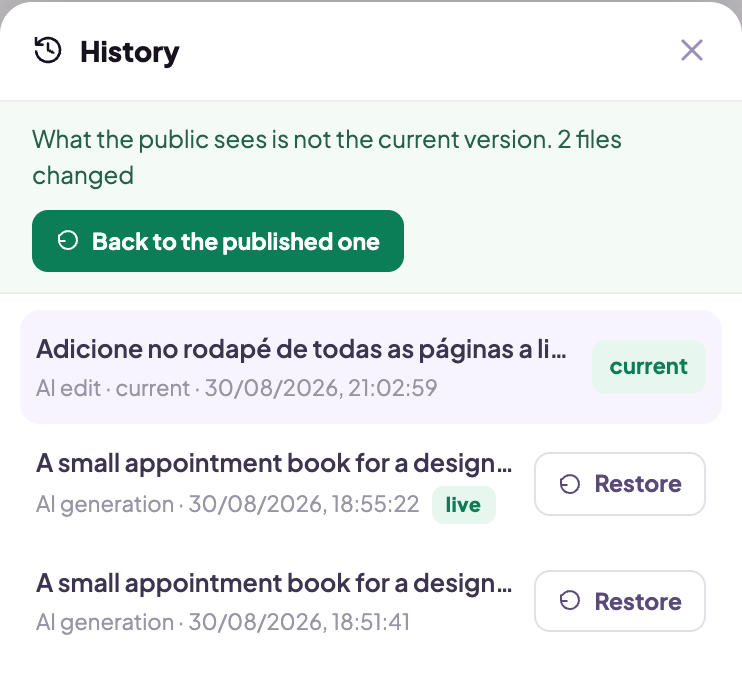
Restoring does not erase what came after: it creates a new version holding the old content. So you can restore an old version, dislike it, and come back to the newest one.
What history covers, and what it does not
| Covers | Does not cover |
|---|---|
| the app's code and screens | the records your users created |
| what the AI wrote in each round | the keys and credentials of your integrations |
| what you edited from the preview | what is already published, until you publish again |
That last row is the one that confuses people the most: restoring touches the draft, not what is live. The published app stays exactly as it was until you click Publish again. That is deliberate, and it is what lets you fix things calmly without an audience watching the repair happen.
For data, the protection is a different one: see the data guide.
Clearing the conversation erases nothing
The button that clears the chat asks first and says what it does: it starts a new conversation. The app and the version history stay where they were. It is for when the subject has changed and the old context is getting in the way more than it helps.