DocumentationGetting started
Getting to know the Studio
Where each thing is, so you stop looking for it. This list is complete: if it is not here, it does not exist.
Costs no credits: no step in this guide uses AI credits.
The Studio has two places. The panel is the list of your things, and the editor is where a project is built. You enter the editor by clicking a project, and go back to the panel through the "Projects" link in the top corner.
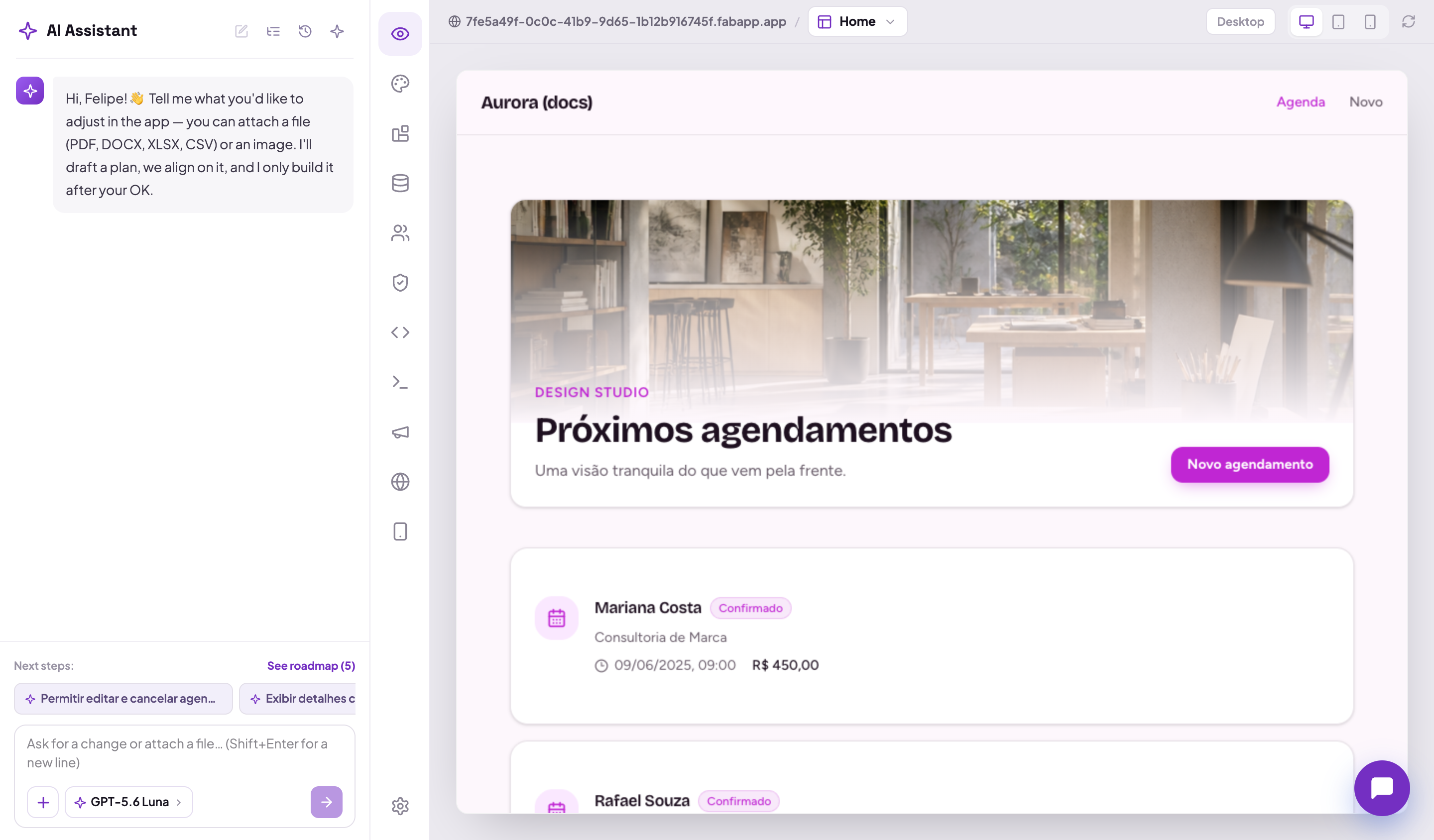
The editor's tabs
The column of icons on the left of the editor. From top to bottom:

| Tab | What you do there |
|---|---|
| AI Assistant | the chat. It plans and applies changes, and holds the version History with "Undo last edit" |
| Preview | see the app running. Clicking an element to edit it only works after turning on Edit in the top bar |
| Brand | the project's name and description, logo, colour palette, typography and corner radius |
| Integrations | two sub-tabs: the providers (payments, email, login, messaging) and external APIs with stored credentials |
| Data | the app's CMS: the saved records, the schema (read-only, models are authored by the AI), the access rules per model, and the currency |
| Users | the people who use the generated app: invite, deactivate, change role, see last access |
| Authentication | how end users sign in: email and password, and social login with Google, Apple, Microsoft, Facebook, GitHub or Discord, plus SSO |
| Code | read and edit the generated code straight in the browser |
| API | the documentation of your app's REST data API, with the endpoints and the access per model |
| Marketing | per-page title, description and noindex, robots.txt, sitemap, and a performance and accessibility analysis |
| Domains | point your own domain at this app, edit its .fabapp.app subdomain and set the sending domain for its emails |
| Mobile app | the native iOS and Android app, the icon, the splash screen and the device permissions. Requires Builder or above |
| Settings | which AI model runs inside the published app, and the option to bring your own provider key |
Two naming traps worth memorising:
- the app's icon and splash screen are not under Brand, they are under Mobile app;
- phone and SMS login is not under Authentication, it depends on connecting Twilio under Integrations.
What lives in the top bar, and not in a tab
- Publish and unpublish;
- Export the code, as a ZIP or straight to GitHub, from Builder up;
- the preview selector (desktop, tablet, phone) and the Edit button, which turns on visual editing.

The panel's screens
| Screen | What for |
|---|---|
| My projects | the list of your projects |
| Templates | the gallery of ready-made apps. The button on the card's sheet creates a real project from the template, by copying, with no AI involved |
| Domains | every domain in the account, across all apps (a specific app's lives in the editor's Domains tab) |
| Team | who is in the workspace, the pending invites and each person's role |
| Billing | current plan, credit balance and usage, invoices and payment method |
| Plans | compare and change plans |
| My profile | your name, your workspaces, password, two-step verification, recovery codes and recent activity |
Switching workspace and changing the platform's language are in the menu at the top of the panel's sidebar.