Sign-up and login in your app
How people create an account and get into the app you published. This is about the users of your app, not about your own Fabapp account, which is a different thing and lives in your profile.
Where it lives
The Authentication tab, in the editor. That is where you switch on the ways of getting in. It costs no credits.
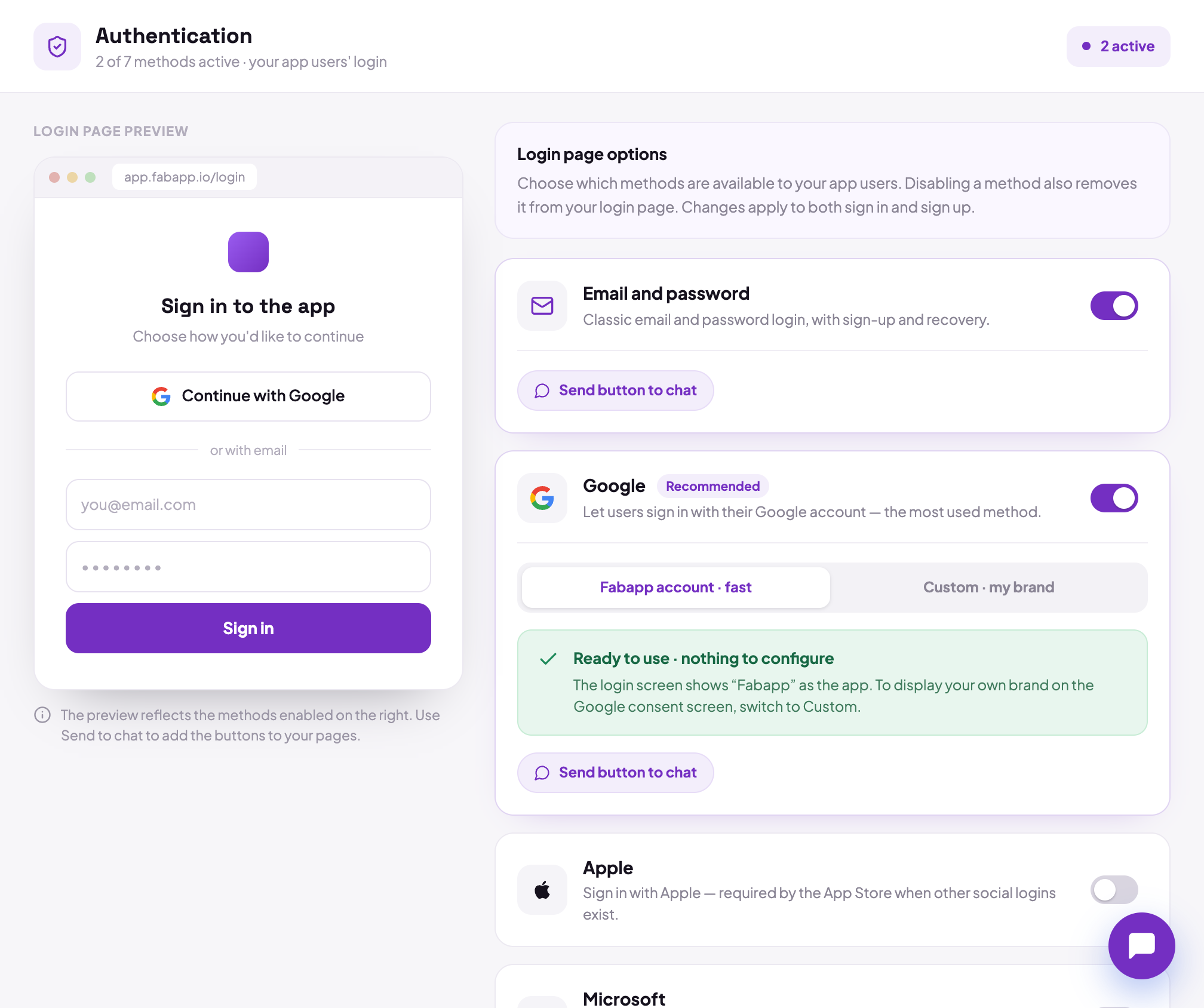
Email and password
The default path, and the one that already works without you configuring anything: a person signs up with an email and a password, confirms the email, and can recover a forgotten password. The emails for that part go out on their own.
They go out from a platform address until you set up a sending domain of your own, which is done in the Domains tab. It is worth doing: a recovery email from your own domain lands better in the inbox and does not look like a scam.
Social login
Also in the Authentication tab: Google, Apple, Microsoft, Facebook, GitHub and Discord, plus SSO.
Each one requires you to create an OAuth application on the provider's side and paste the Client ID and Client Secret here. One detail defeats almost every first attempt: the callback URL is not your app's, it is the Fabapp API's, and it appears ready to copy in the Authentication tab itself. That URL is what goes into the provider's console.
There is no "Redirect URL" field for you to fill in here. The direction is the opposite: you copy from here and paste over there.
Login by phone and SMS
It exists, but not in Authentication: it depends on connecting Twilio in the Integrations tab. With it on, a person signs in with their number and a code received by SMS, and can reset the password the same way.
Who is allowed in
Having a login is not the same as having access control. They are two layers:
- who can create an account in your app;
- what each person sees after getting in, which are the per-model access rules, in the Data tab.
An app with login and no access rules is an app where everyone who signs up sees everything. If your app holds one person's data that another must not see, the access-rules guide is the next thing to read, and it is not optional.
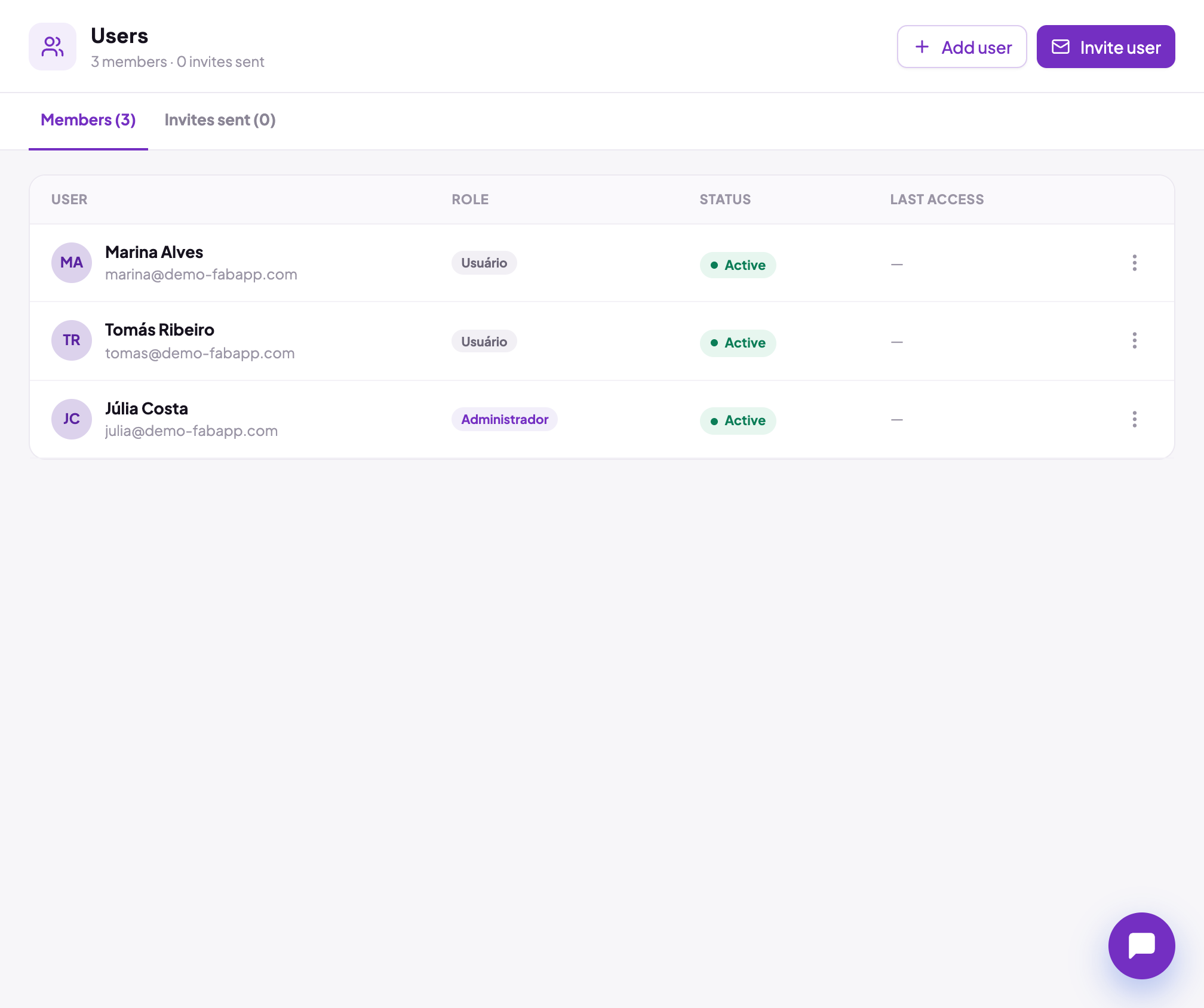
Managing the people who are in
The Users tab lists the people registered in the app: you can invite, deactivate, change the role and see the last access. It is the tab for your app's users; your platform team lives under Team, in the panel.